Daily Positions Map View

Written by Sean Withers
Updated at March 31st, 2026
Table of Contents
Daily Position Map View in Telematics Guru
The Daily Position Map View in Telematics Guru lets you see where assets were at a single configured time each day. This gives you a simple way to review daily asset positions across a fleet without needing to inspect every trip in detail.
It is especially useful for organisations managing large numbers of assets across regions, where a daily location snapshot can help with planning, handover checks, compliance workflows, and general operational visibility.
What this view is best for
Daily Position Map View is best for reviewing one consistent location snapshot per day for each asset. It is useful when you want a high-level operational picture, rather than a full movement replay.
How Daily Position Map View Works
When Daily Asset Snapshots are enabled for an organisation, Telematics Guru stores one position snapshot for each asset at the configured snapshot time each day.
This creates a historical map view of where assets were at that chosen daily timestamp. For example, if the snapshot hour is set to 6:00 PM, the view will show where each asset was at approximately that time on each stored day.
This is different from reviewing full trip history. Instead of showing every recorded point, the Daily Position Map View shows a single stored daily position per asset.
Plain-English definition
Think of this view as a daily roll call for your assets. It answers the question: “Where was each asset at our chosen time on that day?”
Common Use Cases
-
Daily fleet visibility - Check where all assets were at the same time each day across one or more regions.
-
Operational planning - Review whether assets were positioned where they were expected to be before the next workday begins.
-
Exception review - Identify assets that appear out of area or in unexpected locations on a given date.
-
Simple historical review - Compare daily locations over time without stepping through full trip history for every asset.
Important Limitations
Forward Looking Only
Daily asset snapshots are only stored and visible from the date the feature is configured onward.
This is because Telematics Guru only begins capturing the daily snapshot once Daily Asset Snapshots have been enabled for the organisation. It does not backfill past daily positions for this view.
This means that if you enable the feature today, you will only see daily snapshot data from today onward in this view.
Devices using Iridium out-of-band data
Daily asset snapshots do not update daily positions for G120 or G150 devices when the data is sent out-of-band via Iridium.
Before You Begin
Before using Daily Position Map View, confirm that the organisation has the feature enabled and that the organisation’s time zone and snapshot hour have been set correctly.
The organisation time zone matters because the daily snapshot is captured according to that configured local time.
Terms used in this article
-
Daily Asset Snapshot - A stored daily location record for an asset at the configured snapshot time.
-
Snapshot hour - The time of day when Telematics Guru captures the daily asset position for this view.
-
Organisation time zone - The time zone used to determine when the daily snapshot should occur.
How to Enable Daily Position Map View
Daily Position Map View is enabled at the organisation level.
Enable the feature for an organisation
- Go to Admin → Organisation Manage → Organizations.
- Select Edit for the required organisation.
- Open the Configuration tab.
- Set the correct Time Zone for the organisation.
- Select the Enable Daily Asset Snapshots checkbox.
- Set the required snapshot hour.
- Select Save Changes.
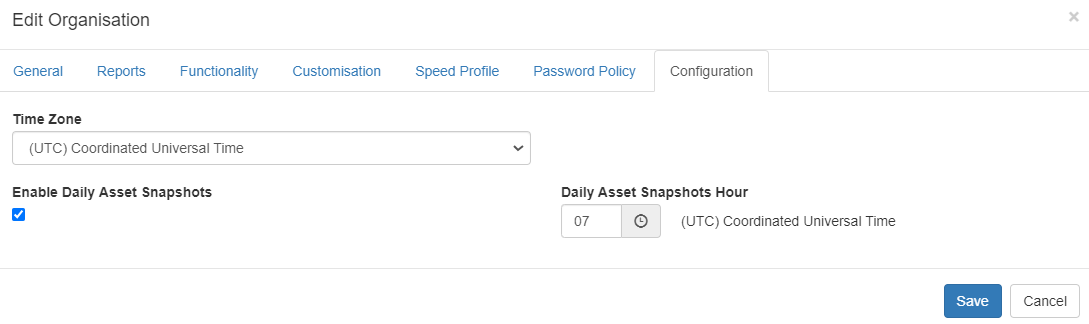
Choose a snapshot hour that makes sense for how your team works. For example, some organisations prefer the end of the workday so they can review where assets finished each day.
How to Access the View
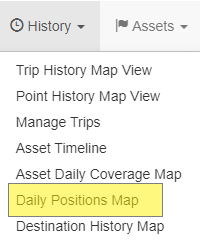
- Go to History → Daily Position Maps.
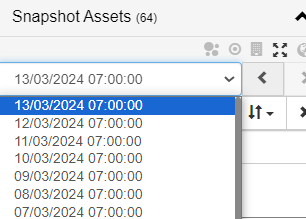
- Select the snapshot date you want to review.
- Review the asset locations shown on the map for that day’s stored timestamp.
What You Will See in the View
When you open the view, Telematics Guru shows the daily snapshot positions of your assets for the selected date.
The control area in the top right lets you choose the stored snapshot date to review. Each date represents the single daily timestamp captured for that organisation.
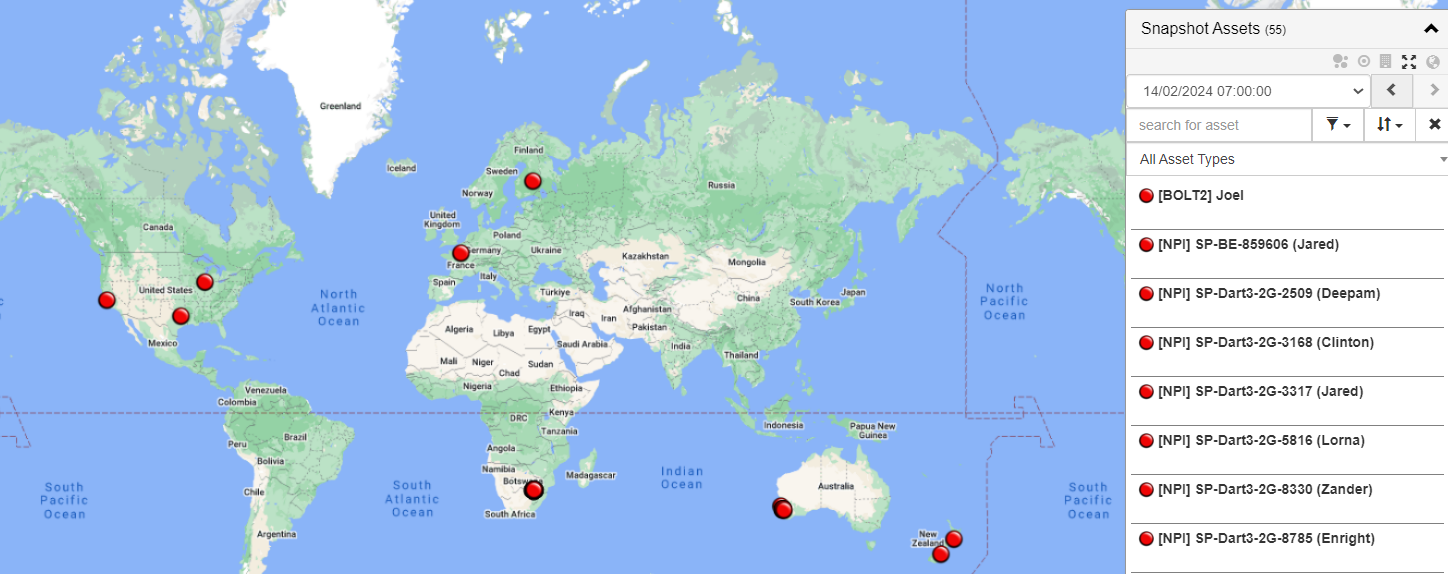
This view is designed to answer a simple question for a chosen day: where was each asset at the configured snapshot time?
How This Differs from Other Location Views
-
Live View shows the current or most recent asset location.
-
History-based views are used when you need to review asset movement over time in more detail.
-
Daily Position Map View shows one stored daily position per asset, based on the organisation’s configured snapshot time.
Troubleshooting Checks
-
No historical data is visible - Confirm when Daily Asset Snapshots were enabled. Earlier dates will not appear if the feature was not active yet.
-
The position appears at the wrong part of the day - Check the organisation time zone and snapshot hour settings.
-
The menu option is missing - Confirm that the feature is enabled for the organisation and that the user has permission to access the view.
-
Iridium-based devices are not updating in this view - Check whether the device is a G120 or G150 sending out-of-band data via Iridium, as these are excluded from daily snapshot updates.
Next Steps
After enabling Daily Asset Snapshots, allow the system to begin collecting daily positions from that point forward. Then use History → Daily Position Maps to review where assets were at the configured daily timestamp.
For best results, make sure the organisation time zone and snapshot hour reflect how your team wants to review fleet position data each day.
