Custom Map Overlays in TG
Set up Custom Map Overlays and host these in Telematics Guru

Written by Matthew Clark-Massera
Updated at October 9th, 2026
Table of Contents
Telematics Guru can support Custom Map Overlays.
Map overlays will be displayed on the following views:
- TG Web
- Live View
- Trip History Map View
- Asset Daily Coverage Map
- TG App
- Live View
- Overlays are disabled by default, and must be enabled on the Settings page within the app
Often users such as mine sites wish to be able to overlay aerial images, or more up-to-date maps onto a tracking platform.
Aerial images make locating devices and seeing the actual position relative to site features simple.
Often in newer areas, the Google Maps view will not update quickly enough for requirements so the option to overlay images is a key feature.
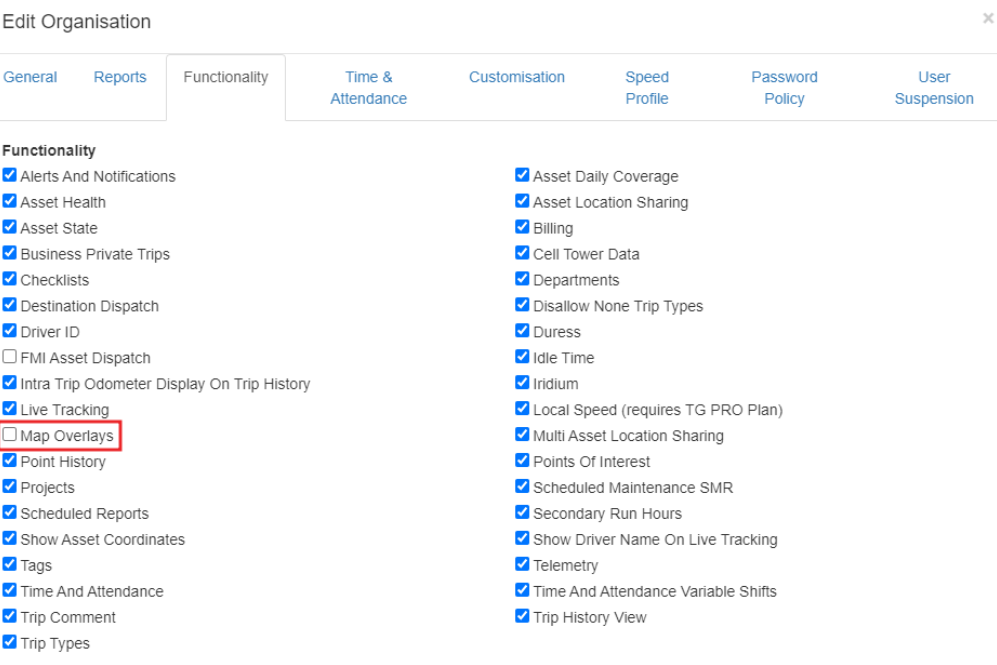
To use this feature, the Map Overlays functionality must be enabled for your organisation.
Tiled Map Format
In order to set up map overlays in Telematics Guru, you must first create your map files in Tiled Map Format.
To create the tiles you can use services such as Maptiler, QGIS or ArcGIS
Be sure to use the Web Mercator projection format.
The tiles are essentially the overlay image at various zoom levels - so when you zoom in/out of the map the overlay will scale accordingly and display correctly.
Maptiler
The following steps relate to Maptiler, which offers a free version suitable for TG overlay purposes.
- Download the desktop app for MapTiler.
- Create a free account.
- Upload the
overlay_map.pngfile in the upload box.A note on creating Overlays
Aligning overlays in the MapTiler against OSM is easier when satellite landmarks can be aligned.
Use a Google Earth screenshot which includes the building and approximately 40 metres of surrounding area in each direction (as long as this screenshot includes recognisable landmarks).
Import the screenshot into Canva, or a similar image editing tool, and crop the image using identifiable landmarks on the north, south, east, and west sides of the site.
Superimpose the floor or map overlay onto the satellite image and align it to match the visible site features. The image editing tool provides the opacity, scale and rotate functions.
Lock the aligned layers and export the combined image.
In Google Earth, identify and record the coordinates of the same landmark reference points used during alignment for later use in MapTiler and TG / DM (Bounding box coordinates - you can visually align them in the ‘Side by Side mode’, per step 5 below and then update the coordinates).
Import the exported image into MapTiler per above.

- Select Assign Location Visually (Georeferencer).

- Using ‘Side by Side’ mode, place the corresponding points by clicking on the point on the map and then the same spot on the image. Key reference points such as building corners are great for this.

- Under the Coordinates dropdown at the right, select Web Mercator (EPSG:3857) from the drop down.
- Select “Folder with tiles” as the output format, and confirm Web Mercator is selected.

- On the next page, no changes are required on the Output tile format.
- Tick the Non-commercial use checkbox and continue.
- Create a new folder and save.
- This folder is now ready for compressing.
Important
The Telematics Guru uploader requires all tile folders to be contained within a single top-level folder. Compress the top-level folder itself, rather than the folders or files inside it.
Hosting
The Overlay files can be hosted in Telematics Guru.
Telematics Guru will pull the Tile Files from your uploaded folder and overlay them on the map.
Set Up:
To set up a map overlay:
- Go to Admin -> Map Overlays (the user account will need the Map Overlays permission - contact DM if you cannot access map overlays)
- Click New in the top right.
- On the General Tab, the following options are presented; mouse over the tooltip near each option for more information.
- Name
- Default Opacity
- Minimum Zoom (the free version of Maptiler is constrained to 19)
- Maximum Zoom (the free version of Maptiler is constrained to 23)
- Enter the coordinates for the boundaries. These details can found be found in the Maptiler export, in the metadata.json. Open this with a text editor. TG will only accept coordinates up to seven decimal places.
- North Boundary
- South Boundary
- East Boundary
- West Boundary
- Hidden by Default


- On the Upload Tab, select the Maptiler folder. Note the folder must be compressed / zipped.
Important
The Telematics Guru uploader requires all tile folders to be contained within a single top-level folder. Compress the top-level folder itself, rather than the folders or files inside it.
- Ignore the Legacy Tab, unless you have an existing map overlay, or would intend to host publicly.
Overlays are added to each organisation. If you need the same overlay on multiple organisations, you must create it per organisation.
- Review status, and look out for the success message. Ensure Map Over
Video Guides
The following videos provide a step-by-step guide of the process, start to finish.
-
Create and edit your floor plan and map overlay.
-
Create a tiled overlay using Maptiler.
- Upload the overlay to TG using Map Overlays.
Troubleshooting
To troubleshoot a Map Overlay not loading
- Ensure Map Overlays is enabled in the Organisation Functionality.
- Check that the min and max zoom levels are set correctly and match those in the metadata.json file.
- Check that the boundary cardinal points are set correctly and match those in the metadata.json file.
- Edit the Map Overlay that is having issues and check the export format is correct - Web Mercator (EPSG:3857).
- If no issues are identified on steps 1 and 2, Contact Support.
