Speed Monitoring in Telematics Guru

Written by Matthew Clark-Massera
Updated at February 26th, 2026
Table of Contents
What is Speed Monitoring?
Speed Monitoring allows fleet managers to set speed limits and monitor compliance in Telematics Guru.
This is different to the On-Device Speeding function. If you want on-device speeding (speeding detected by the device itself), see On-Device Speeding.
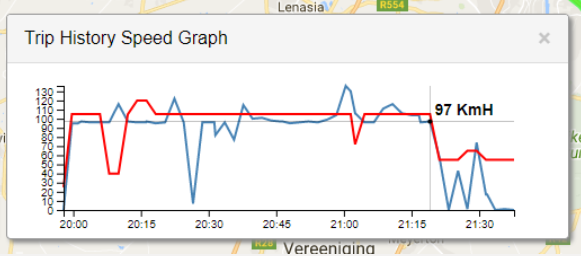
Here is one example of how this can be visualised in Telematics Guru.
TG-Pro requirement for Local Speed (Speed By Road)
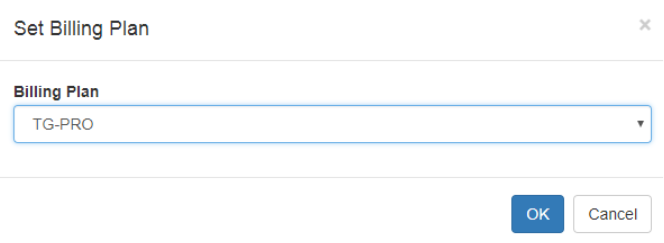
To use Local Speed (Speed By Road), the asset must be assigned to the TG-Pro billing plan.
Speed Limits in Telematics Guru
Speed limits can come from multiple sources in Telematics Guru:
Asset Speed Limit
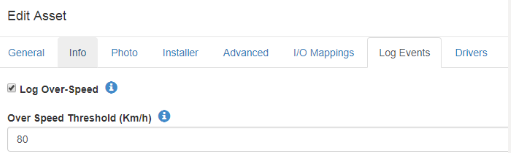
A “TG Asset Limit” can be set per asset. This is useful when a specific vehicle should never exceed a fixed speed (for example, 100 km/h).
To configure this, go to Assets > Manage Assets. Select the asset, then go to the Log Events tab. Enable Log Over-Speed and set the limit.
Geofence Speed Limit
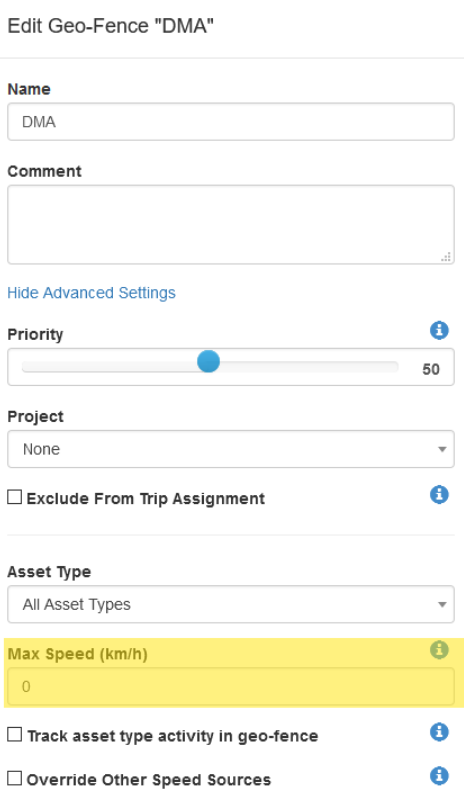
A Geofence can also have a maximum speed limit (for example, 40 km/h on a worksite).
Set the maximum speed against the Geofence as shown below.
Local Speed (Speed By Road) - Requires TG-Pro
Local Speed uses the road speed limit for the asset’s position. Telematics Guru looks up the local speed limit for each data point (latitude/longitude) using the TomTom Speed-By-Road API at the end of a trip.
To enable Local Speed:
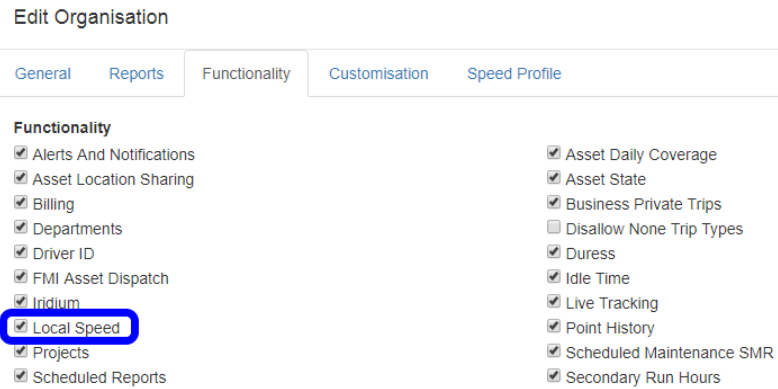
- Enable the Local Speed feature for the Organisation: go to Admin > Organisations, select Edit, then go to the Functionality tab and enable Local Speed.
- Assign the asset to the TG-Pro billing plan: go to Admin > Organisation Manage > Asset Billing Plans, then assign the asset to TG-Pro. The user will need the Organisation Manage and Billing Plan Manage permissions. For billing plan details, see Asset Billing Plans.
Note
The first trip after moving an asset to TG-Pro will not do speed lookups. This prevents historic lookups when there is no valid starting point.
For reporting and speed banding, Telematics Guru uses violations against the lowest speed limit encountered from the three sources above.
Example: a truck is travelling at 105 km/h. The following limits are defined:
- TG Asset Limit: 80 km/h. The truck should never exceed 80 km/h, even if the road limit is higher.
- Local Speed Limit: 100 km/h. The truck’s location is looked up against TomTom and 100 km/h is returned for that road.
- TG Geofence Limit: 85 km/h. A Geofence has been created with a limit of 85 km/h and applies while inside that Geofence.
The truck is exceeding all three limits. The lowest limit (80 km/h) is used, so reports will show the truck was travelling 25 km/h over the limit.
Speed Profiles
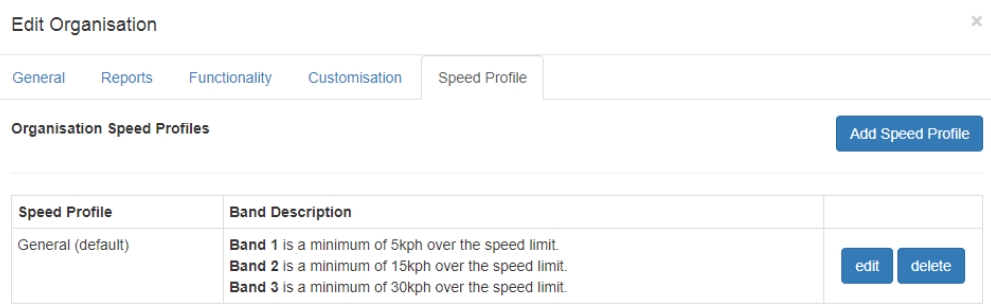
A Speed Profile defines three bands (Band 1 to Band 3) used to group speeding severity. Band 1 is the least severe and Band 3 is the most severe. Speed Profiles are configured per Organisation and then assigned per asset.


- Create a Speed Profile: go to Admin > Organisations, select Edit, then open the Speed Profile tab. Add a new profile and set Band 1, Band 2, and Band 3 thresholds.
- Each band is defined using three fields:
- Minimum: asset speed must exceed (speed limit + Minimum). Example: Minimum = 5 km/h and speed limit = 60 km/h, so the band starts at 65 km/h.
- Percentage: asset speed must exceed (speed limit + Percentage of the speed limit). Example: Percentage = 10% and speed limit = 60 km/h, so the band starts at 66 km/h.
- Maximum: asset speed must be less than (speed limit + Maximum). Example: Maximum = 15 km/h and speed limit = 60 km/h, so the band ends at 75 km/h.
- Minimum: asset speed must exceed (speed limit + Minimum). Example: Minimum = 5 km/h and speed limit = 60 km/h, so the band starts at 65 km/h.
- If a speed matches multiple bands, Telematics Guru selects the highest (most severe) band that applies.
- Assign a Speed Profile to an asset: go to Assets > Manage Assets, select the asset, then open the Advanced tab and choose the Speed Profile.
Speed Monitoring Methods
Once speed sources and Speed Profiles are configured, you can review speeding using reports, trip views, alerts, and telemetry.
- Reports: if you cannot view a report, ensure it is enabled for your Organisation. If it is not available to enable, contact support.
-
Fleet Activity Summary v2 (ReportId = 66) - uses speed bands. Version 1 does not. This report is pdf only.
-
Speed Band Event Report (ReportId = 70) - lists speeding events (when an asset goes over the limit and then returns below the limit). This can be filtered by band and uses all speed sources (including Local Speed when on TG-Pro).
-
Speed Band Detail Report (ReportId = 67) - lists individual data points where the asset was above the limit, including the band for each point. This can be filtered by band and uses all speed sources (including Local Speed when on TG-Pro).
-
Speeding Report (ReportId = 12) - uses a fixed speed limit specified when running the report. Bands, Local Speed, and Geofence limits are ignored.
-
Speeding - Detail (ReportId = 37) - uses the asset’s Over Speed Limit (from the asset’s Log Events tab). Bands, Local Speed, and Geofence limits are ignored. Each violation is listed.
-
Speeding - Summary (ReportId = 42) - uses the asset’s Over Speed Limit (from the asset’s Log Events tab). Bands, Local Speed, and Geofence limits are ignored. Violations are summarised by asset.
-
Fleet Activity Summary v2 (ReportId = 66) - uses speed bands. Version 1 does not. This report is pdf only.
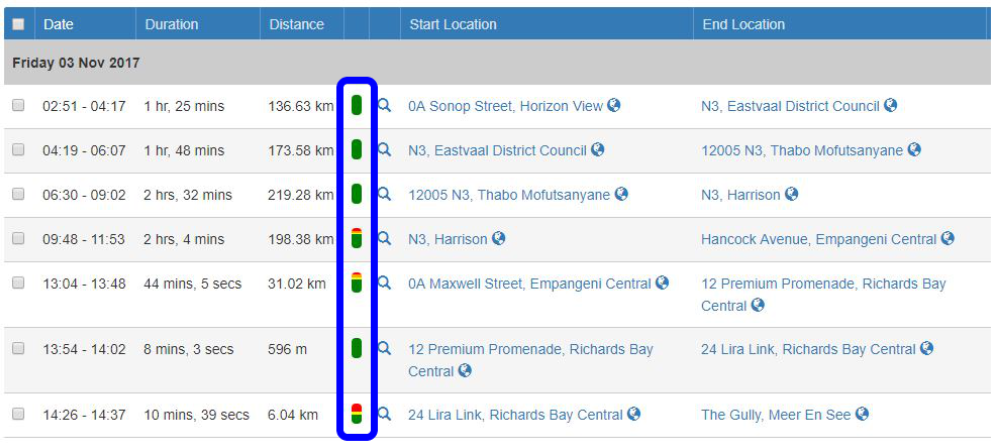
- Manage Trips page: trips show a coloured bar for band severity (green = Band 0, yellow = Band 1, orange = Band 2, red = Band 3). Hover to see the percentage time in each band.
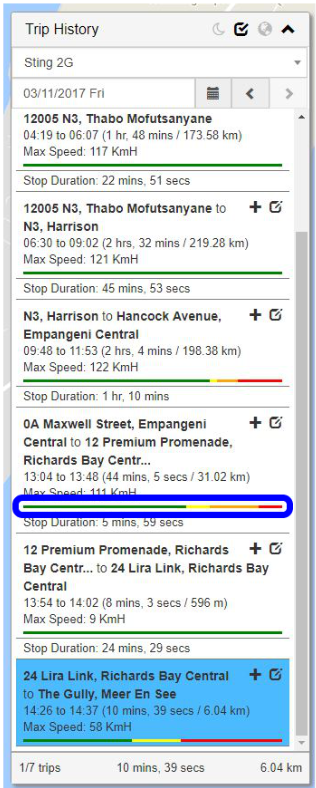
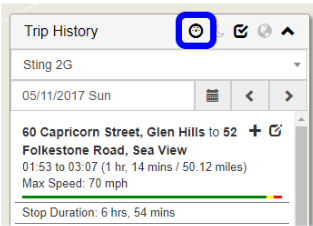
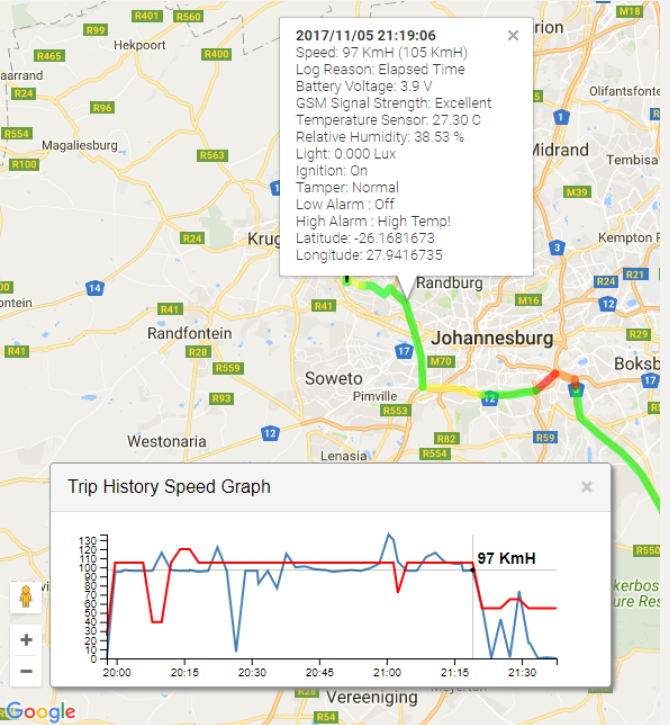
- Trip History Map page: trips show a band bar under each trip and the trip track can be coloured by band. You can also show a speed graph for the trip.
- Alerts: alerting is based on the fixed speed defined in the alert and cannot be tied to Local Speed. You can optionally apply Geofence criteria (for example, “Speed is above 100 km/h when inside Area1”).
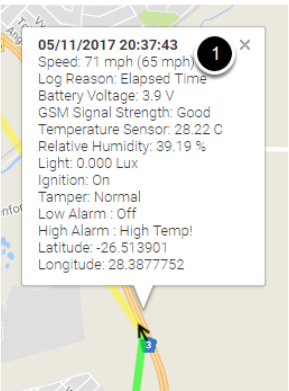
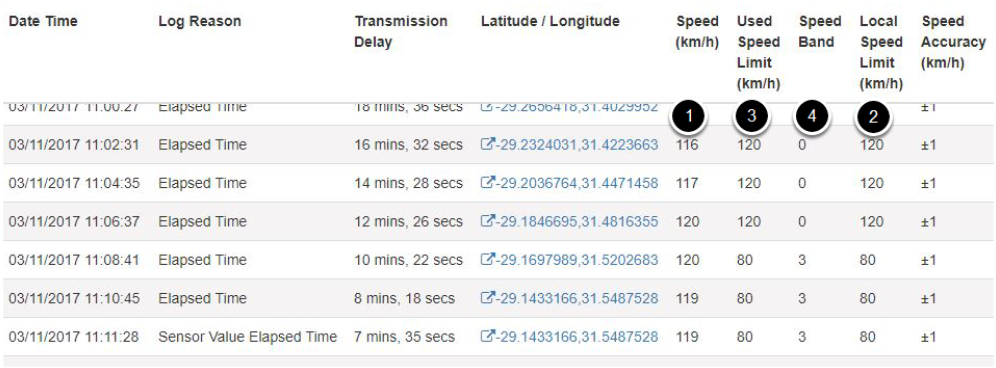
- Telemetry: use the Telemetry page to inspect each logged point, including actual speed, Local Speed (if enabled), the Used Speed Limit, and the selected band.
Full Example (Enabling Local Speed)
This example enables Local Speed lookups for an asset and shows where the results appear in Telematics Guru.
- Enable Local Speed for the Organisation: go to Admin > Organisations, select Edit, then open the Functionality tab and enable Local Speed.
- Create a Speed Profile: go to Admin > Organisations, select Edit, then open the Speed Profile tab and add a profile with your band thresholds.
- Assign the asset to TG-Pro: go to Admin > Asset Billing Plans and assign the asset to the TG-Pro plan (see Asset Billing Plans).
- After each trip completes, Telematics Guru will perform Local Speed lookups and classify points into bands based on the Used Speed Limit and the assigned Speed Profile.
Organisation setting example:
Speed Profile example:
TG-Pro billing assignment example:
Speed Band Detail Report example:

Fleet Management Summary v2 example:

Manage Trips page band bar example:
Trip History Map page band bar example:
 |
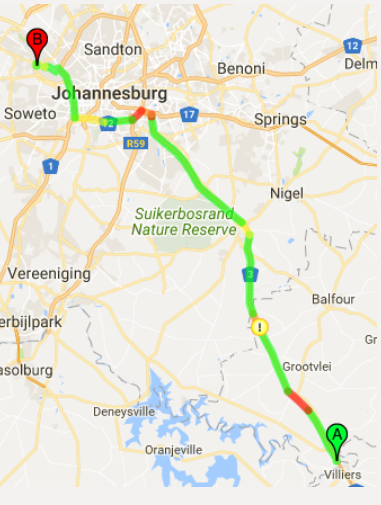 |
| The track on the map can be coloured according to the band the asset was in. Use this icon to enable band colouring. | Band colouring as it appears on the Trip History Map page. |
 |
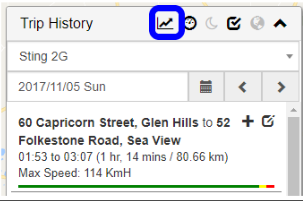 |
| Hover over a point to see the actual speed and Used Speed Limit. | Use this icon to show the speed graph on the Trip History Map page. |
The speed graph plots asset speed and speed limit over time. Hovering a point on the map highlights it on the graph, and hovering a point on the graph highlights it on the map.
Looking at Telemetry for the Asset
The Telemetry page shows each record logged by the asset, including:
- Actual speed logged by the device.
- Local Speed (if enabled for the Organisation and the asset is on TG-Pro).
- Used Speed Limit (the lowest of Asset / Geofence / Local Speed limits).
- Selected band (based on the Speed Profile).
Click the latitude/longitude link to view the point on the map.
Common Troubleshooting
I don't see the speed bars in the trip views.
- Ensure Local Speed is enabled for the Organisation, and the asset is assigned to the TG-Pro billing plan. Once that is in place, Local Speed lookups will occur after trips complete.
The report I'm using doesn't include Local Speed.
- Some older reports do not use Local Speed or banding. Use the Speed Band reports or Fleet Management Summary v2 if you need band-based reporting.
The Local Speed limits aren't accurate.
- Local Speed accuracy depends on TomTom’s known speed limits for your region. Test the feature in your operating areas to confirm the coverage and accuracy meets your needs.
Next Steps
If you want device-side detection and alerting instead of post-trip banding, review On-Device Speeding.
For billing plan setup and permissions, see Asset Billing Plans.
