Input Monitor

Written by Matthew Clark-Massera
Updated at August 7th, 2025
Table of Contents
Applies to:
| Device | Firmware Version |
| Arrow Global Bluetooth® | All Versions |
| Dart3-2G, Dart3-4G, Dart3-4G Bluetooth® and Dart3 Global Bluetooth® | All Versions |
| G120-2G and G120-4G | 2.2+ |
| G70-2G, G70-4G and G70-4G Bluetooth® | All Versions |
The input monitor allows a digital output to be set, or a buzzer to be sounded, based on the state of device digital inputs, and a speed threshold.
Examples of the use of this feature might be:
- Sound a buzzer when a digital input (e.g. seatbelt input) is inactive, AND a vehicle is in trip and is moving at over 5km/h. This allows for seatbelt buzzing to occur once the vehicle is actually on the move, rather than simply if the ignition is running.
- Turn on an output based on the state of another input.
- Immobilize on external power disconnection.
System Parameters

Enable Input Monitor
Disable or Enable to turn this feature off/on
Speed Threshold km/h
Speed value for which to activate the input monitor.
Leave as NULL or 0 to not use speed checking. It is not advisable to use very low speeds (< 10km/h)
Speed Hysteresis (km/h)
Sets value for speed to drop before deactivating Input Monitor. for example; if Speed Threshold is 100km/h, and Hysteresis is 3km/h. The monitor will be activated if the speed exceeds 100km/h, and it will not turn off until it has dropped below 97km/h
Digital Input Active Mask
This is a bit mask which controls which inputs control the input monitor. It enables any of the device digital inputs (including ignition status, or other inputs such as battery status, GPS jamming etc) to control the monitor.
For example, to have the input monitor active for when Digital Inputs 1, 2 and Ignition (0) are ON, this would result in a binary representation of the inputs as: 111 which is the decimal equivalent of 7.
Digital Input Inactive Mask
As per active Mask, but these are the inputs that when OFF, the input monitor is activated.
The Speed Threshold and Digital Input masks are ANDed together, i.e. when above X speed, and X inputs are active + X inputs are inactive, the monitor is on.
The below settings determine what happens on activation
Digital Input
Which DI to set when the Input Monitor is activation/ON
This enables somewhat complex alerts and combinations of other events to be distilled to a single input.
Output Type
None: Don't set any outputs
Digital Output 1: Turn on Digital Output 1 and keep it on for the duration the Input Monitor is active.
Buzzer: Buzzes the Internal Buzzer (if present), the buzzer within the RFID reader if connected, and pulses any outputs set up to"Buzzer"
Immobiliser:Turn on any outputs set up as an Immobiliser
-
The Digital Output line will only be turned with the above options if its function is set to Digital Output, Buzzer or Immobiliser

Buzzer Beep On/Off Period
-
Duration of the buzzing (if Output Type is set to Buzzer) - generally leave as default
Applications and Examples
Seatbelt Buzzer
There are a number of ways to implement seatbelt buzzers (often the car will have one anyway from the factory!) One such way is to set up buzzing on a digital input being inactive, and wiring the high side of the buzzer to the ignition source - so buzzing only occurs when the ignition is on and the seatbelt (as read by a digital input) is not done up.
However this results in buzzing immediately once the ignition is turned on. Setting up the Input Monitor will allow the vehicle speed to be taken into account.
So for a device with the seatbelt connected to Digital Input 1, which we wish to buzz when travelling at > 10km/h and the ignition is inactive - settings would be
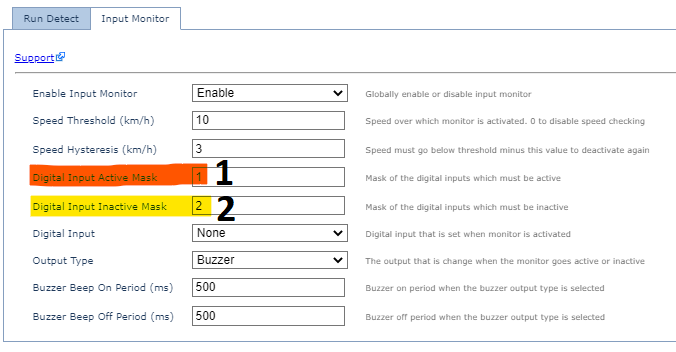
- Speed threshold of 10km/h, hysterisis of 3km/h
- Digital Input Active Mask = 1
- 1 = ... 0001 in binary (i.e. DI 0, ignition is active)
- Digital Input Inactive Mask = 2
- 2 = ... 0010 in binary - i.e. DI 1, our seatbelt is ON
- Output Type = Buzzer - buzz when the above 3 conditions are true.
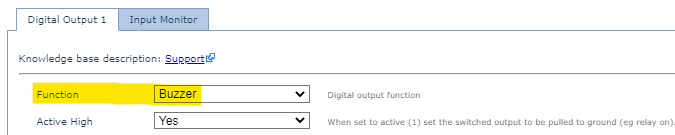
- Digital Output Function is set to Buzzer.
Turn on an Output when an Input becomes active
Scenario: When Digital Input 2 becomes active, turn on Digital Output 1.
In general, this kind of behaviour can be achieved in hardware when the device is installed via a relay or similar. However the Input Monitor feature can be used to provide this functionality without revisiting the asset.
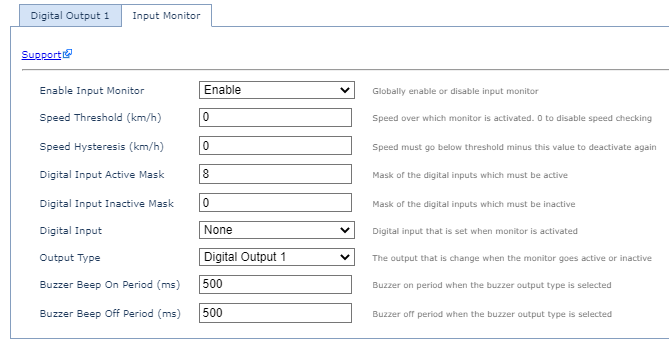
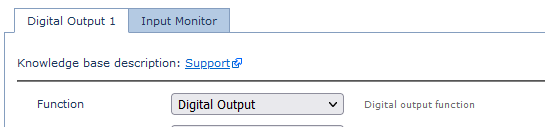
The Digital Output must be set to function Digital Output
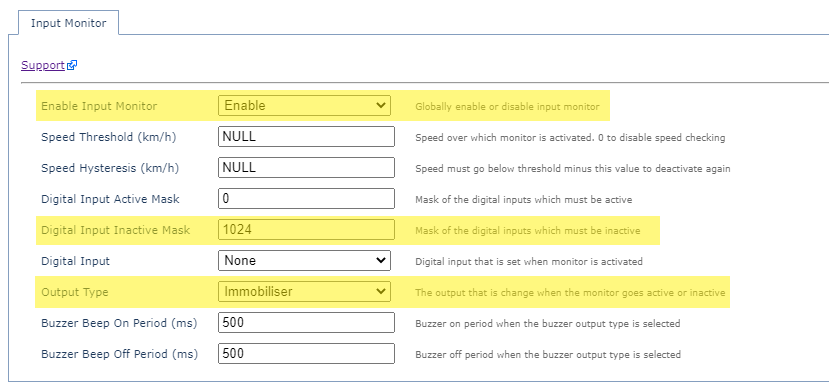
Immobilize on External Power Disconnection
See hard wired device immobilization options to first set up immobilization: Immobilization options
The input monitor can then be set up so that immobilization would be enabled in the event external power is disconnected. The external power tab will need to be set up to a specific digital input as seen below.
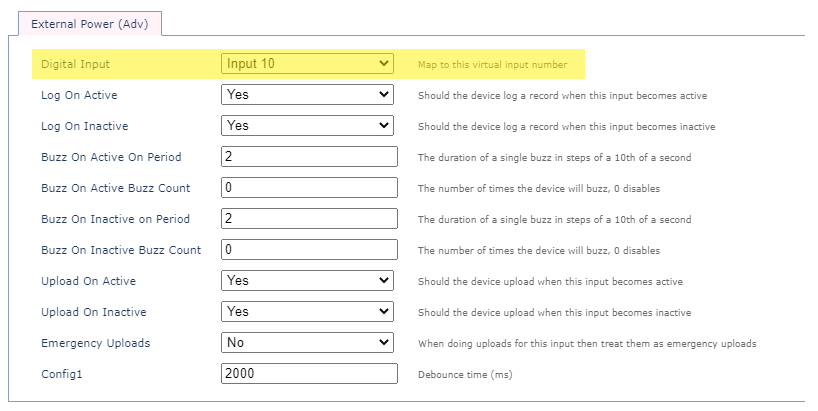
Once that has been added, the input monitoring tab can be enabled so that if the specified digital input is inactive the output type actions immobilization.
Points to Consider
Default Mappings
Check the device's default I/O Mappings to ensure that you do not set up one that is already in use, causing a clash. Inputs 5 and 6 are in use by default across most models.
Arrow Global BLE - Default I/O Mappings
Ignition Status
It is important to consider the ignition digital input when setting up parameters. E.g. if the input monitor needs to be on when an asset is travelling at over 20km/h, AND one of the digital inputs is active - if the vehicle is towed this could be the case.
So ensuring that DI 0 (ignition) is included in the Digital Input Active mask - and Emulated Ignition is Disabled will prevent any potential buzzing during a towing trip.
Digital Input Active + Digital Input Inactive Masks
The use of the bit masks enables great flexibility in settings and functionality. It is possible to set the same values in the Active and Inactive masks - which will result in the monitor being on or buzzing constantly. Take care when setting up your parameters.
