Parameter Templates in Device Manager
Learn how to effectively use parameter templates in Device Manager for streamlined device configuration and management.

Written by Matthew Clark-Massera
Updated at August 21st, 2026
Table of Contents
Introduction to Parameter Templates
Parameter templates are a collection of settings that can be applied en masse to a set of similar devices. You can have either Admin Parameter templates that consist of connectivity settings, or System Parameter templates that consist of settings that control how the device operates. Once a template is created, it cannot be edited. If settings must be changed you must edit the settings on a device and create a new template. You can delete an old template by clicking on Parameter Templates in the navigation bar.
Create a Template
When creating a parameter template, the general process is described below:
- Edit an individual device. Setup the parameters as you require them on a single device
- Create a parameter template based on this single device. This will create a snapshot of its settings
- Apply the template to multiple devices to replicate those settings to all of the devices.
The first step is to set up the individual parameters on the first device, you can see this process above in the main OEM Getting started article body.
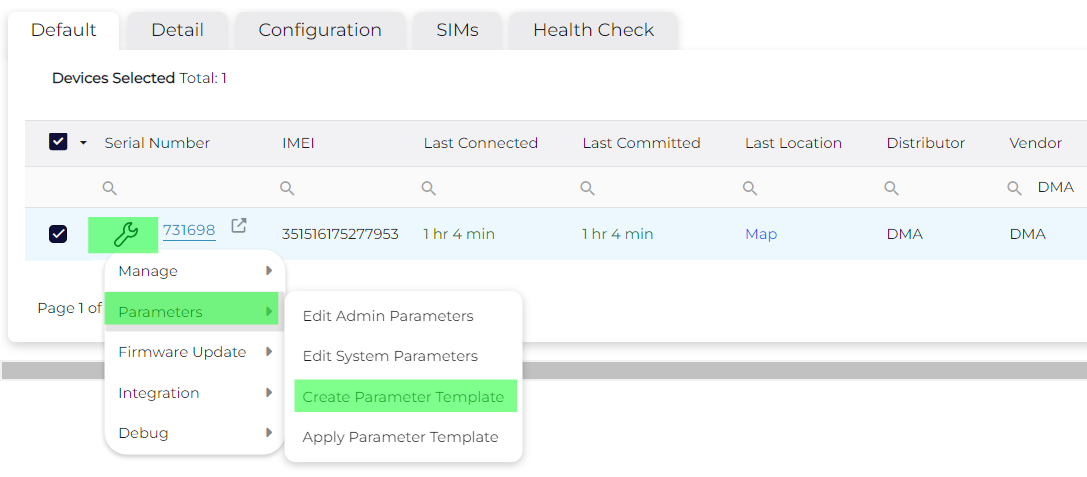
Then select your device, and go to ‘Parameters’ and click 'Create Parameter Template (single device).
You can select whether you wish to save the current device's System parameters or Admin parameters (1) then where you wish to save the template (2). This can be helpful if you have a) many templates or b) specific templates used only for one client group. Then you can provide a unique name for the template (3) and provide an adequate description (4) that helps you identify the template from a dropdown list.
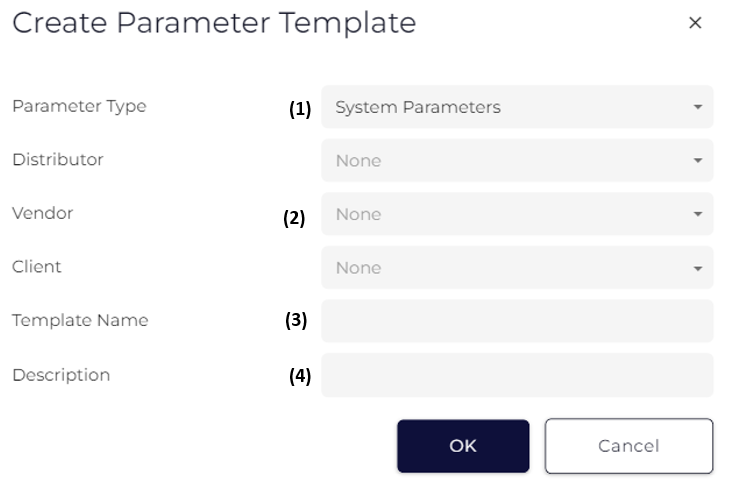
Note: template names must be unique within your Vendor Group. If you try to save a template using a name that's already in use, you'll be prompted to choose a different one.
Applying a Parameter Template
Once you have created a parameter template as above, you can select as many devices of the same type as you need and bulk apply the settings.
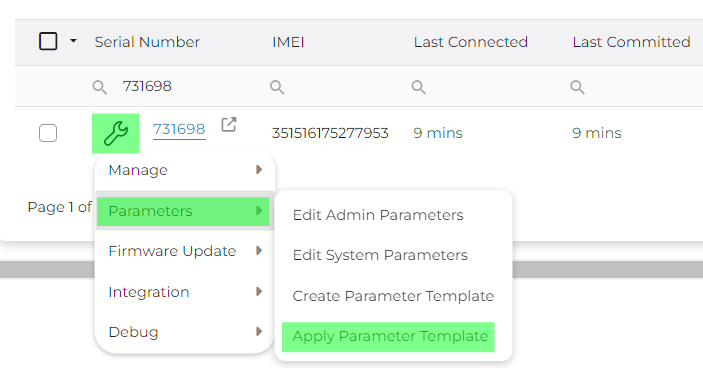
Click the wrench, go to Parameters, and select ‘Apply Parameter Template’.
Then select which type of template you have; Admin or System and select the specific template from the dropdown list.
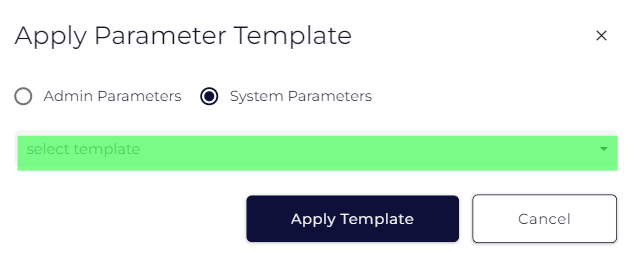
Then select “apply template”.
Editing Parameter Templates
Once created and applied you may need to alter the Parameter template to apply the required changes to a collection of devices.
To edit a Parameter template please follow the below steps:
- Select a device that already has the Parameter template applied to it, edit the settings as required and save the settings.
- Use the new settings on the device to create a new Parameter template
- Apply this Parameter template to the devices you want to effect the changes on
- Delete the old Parameter if it is obsolete.
As you may have noted we effectively do not edit templates but rather create a new template and apply it across all the required devices.
- If we change a template name/settings, we can become confused if multiple users have access to Device Manager
- Should the changes be applied to all devices currently on the template, or not?
In both cases keeping templates fixed avoids any potential errors.
Viewing Existing Parameter Templates
You don't need to open a device to check what's in a template. From the Parameter Templates page, use the actions menu (wrench icon) next to any template and select Preview to open a read-only view of its parameter values or click on the link in the parameter template name column.
All fields shown are ‘disabled’, so there's no risk of accidentally changing a live template while just checking it.
To see which devices are currently using a template, select View Devices from the same actions menu. This opens the device grid in a new tab, filtered to that template via the Device Parameter Template column.

Note: which of these actions you can see depends on your permissions. Template Manager users have full access (create, edit, apply, re-assign, delete). Template Viewer users can preview templates and see which devices use them, but can't create, apply, re-assign, download, or delete templates. Contact DM support if you need your permissions adjusted.
Reassigning Devices Between Templates
If you need to move every device off one template and onto another, for example, retiring an old template in favour of a new one, you don't need to do this device by device. From the Parameter Templates page, use the actions menu (wrench icon) and select Re-assign Devices, confirm the "From" template and select the "To" template. All devices on the existing “From” template will be updated to the "To" template in one go.
Note: devices that have manual parameter changes applied on top of the "From" template are automatically excluded from the bulk re-assign, so those changes aren't accidentally overwritten. You'll need to reassign those devices individually if you still want them moved.
This replaces the older manual workaround of opening View Devices, selecting every device in the grid, and bulk-applying the new template from there. That approach still works, but the "From"/"To" option is quicker when you're moving an entire template's worth of devices at once.
