Oyster Edge - Default I/O Mappings

Written by Matthew Clark-Massera
Updated at May 2nd, 2024
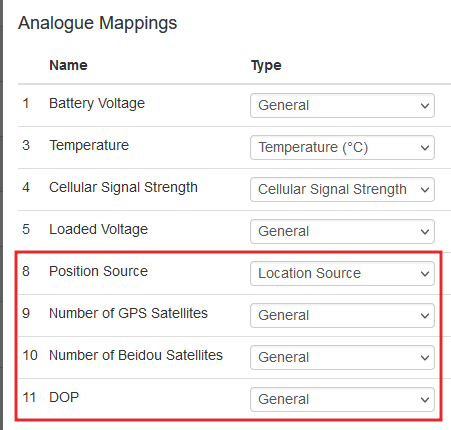
Here are the Default I/O Mappings for Digital Matter's Oyster Edge tracker. You can change some of these mappings on OEM server - we do not recommend changing these unless you know what you are doing.
These mapping can be very handy to identify and debug issues.
For example, if the device is connecting to the server/platform intermittently, this maybe an issue with coverage which can be confirmed by analyzing/plotting Analogue 4 (Cellular Signal Strength).
| Analogue Mapping | Description |
|---|---|
| 1 | Battery Voltage |
| 3 | Temperature |
| 4 | Cellular Signal Strength |
| 5 | Loaded Voltage |
| Digital Mapping | Description |
|---|---|
| 0 | Ignition |
| 1 | 'Battery Good' Flag 1 = Good 2 = Low |
| 2 | 'Battery Critical' Flag 1 = Critical |
See Battery Level Monitoring [Oyster Edge] for information on the battery flags.
All DM devices have 'status flags'. The status flags are sent in Field 2 to 3rd party servers. However in Telematics Guru, they are remapped to the following Digital Inputs.
| Digital Mapping | Description |
|---|---|
| 24 | Trip State 1 = in trip |
| 25 | Battery Good 1 = good 0 = low |
| 29 | Battery Critical 1 = critical |
Additionally, in TG, information about the resolved location is mapped to analogues for ease of viewing.