Hawk Operation - Task Schedules

Written by Matthew Clark-Massera
Updated at October 13th, 2026
Table of Contents
The Hawk's operation centres around the concept of a "Task" - which is a selection of actions, performed on a schedule, or in response to an event (like a Digital Input Change or Analogue threshold). Up to Four tasks can be configured, with up to 5 actions each.
If we don't configure a task, the Hawk by default will do nothing but heartbeat once daily.
We may also need to configure our sensors separately, on other parameter tabs to ensure the setup is correct for when the task runs.
Task Parameters
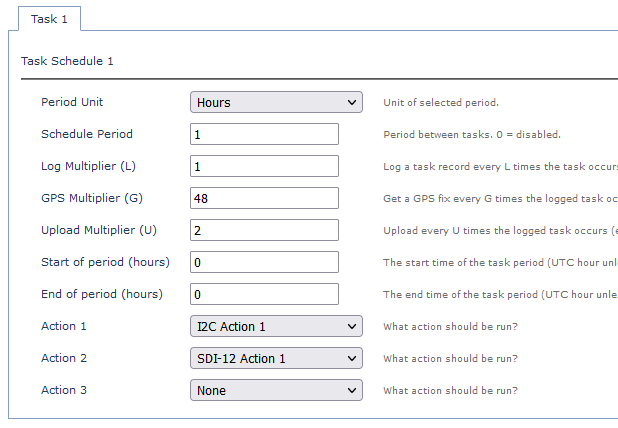
| Period Unit + Schedule Period | Set how often the task (and actions) occur - i.e. how often we sample sensors |
| Log Multiplier (L) | Log every L times the task occurs. |
| Upload Multiplier | Upload every N tasks |
| GPS Multiplier | If the asset is stationary, or moves infrequently, we might disable GPS completely (set to 0) - or set the multiplier to a large number so fixes occur less often. This conserves energy and extends battery life. |
| Start/End Period | We might only want to run the task during a certain time (i.e. during day). Or we might want it to run every 10 min during 6am -> 6pm, and hourly outside that - in which case we can set up 2 tasks to achieve this. |
| Action |
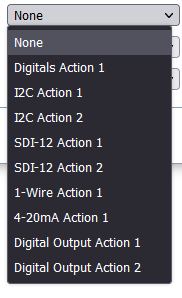
Actions are typically which sensor readings we want to take, or setting an output, e.g:
|
Example Task Configurations
Some examples are given below. These serve to illustrate how to configure tasks, generally we need to configure additional parameters specific to the sensor type and individual sensor.
Read and report temp/hum every 10 minutes
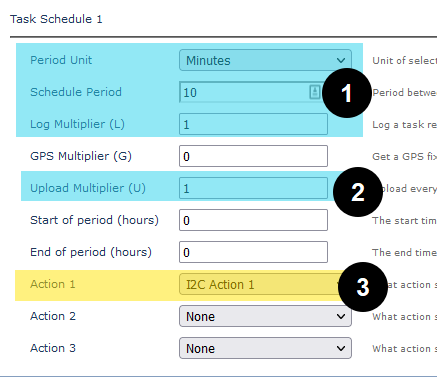
- Run the task (take a sensor reading) every 10 min, and log it
- Upload every single task - so we sample and upload every 10 min
- Run I2C Action 1
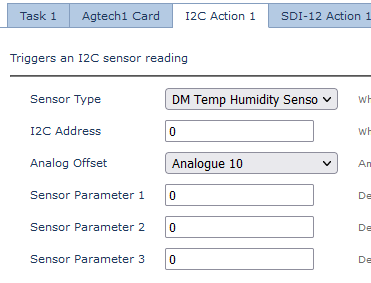
We configure I2C action 1 to sample the sensor type we have connected - DM Ambient (Temp/Hum) Sensor
Sample 4-20mA tank level sensor every 10 min, uploading hourly, disable GPS
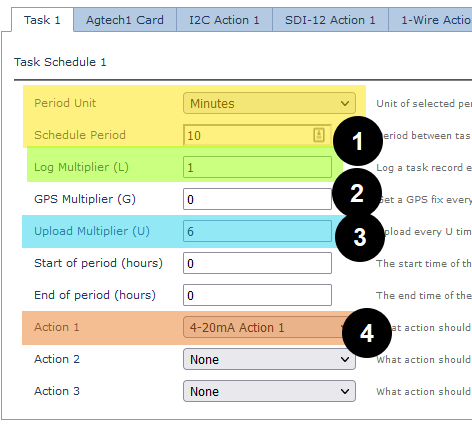
- Read value every 10 min and log
- GPS Multiplier = 0 to disable GPS - the Hawk is mounted in a stationary location so we don't care about GPS position
- We upload every 6 tasks - so every 6 x 10 min = hourly
- Sample the 4-20mA sensor
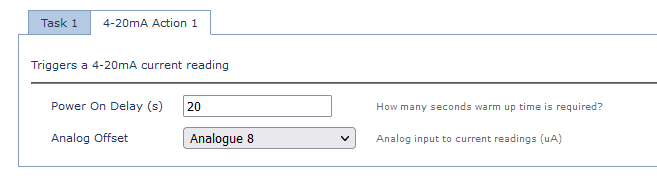
For the 4-20mA sensor, we configure a power on delay and which analogue the value should be placed in the Hawk's payload.
Read Temperature every 10 min, Soil Moisture Probe hourly
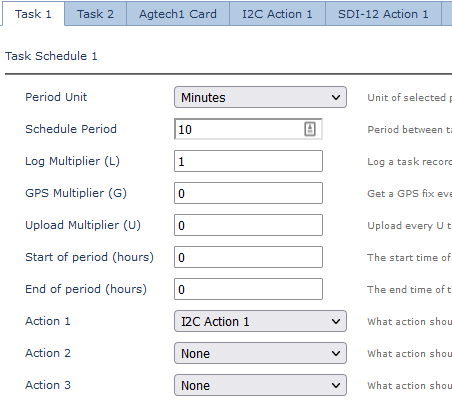
Task 1 - read temp every 10 min..
We set the upload multiplier to 0 to not upload due to this task - the readings will be logged and uploaded together with the task 2 upload.
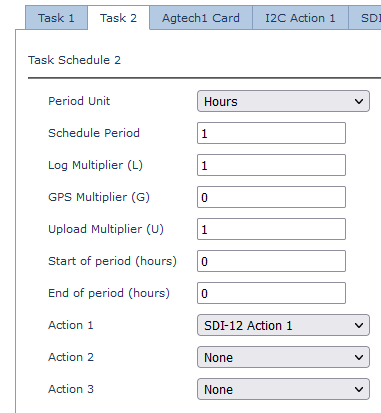
Task 2 the soil moisture reading (via SDI-12 probe) hourly, and upload.
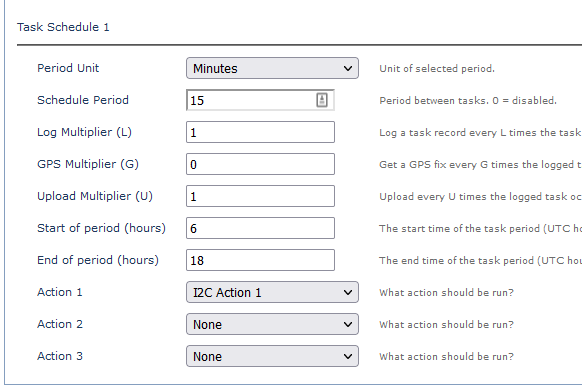
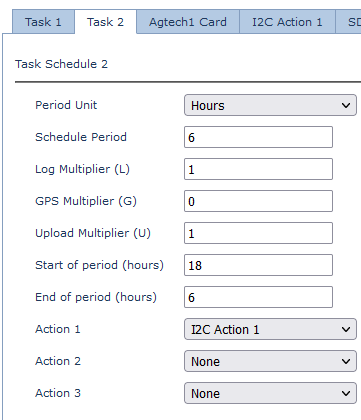
Sample every 15 min during day, every 6hrs at night
To save power we may only require aggressive monitoring during working hours.
- Set timezone

- Run task 1 (15 min sample + upload from 0600 → 1800
- Run task 2 (6 hour sample + upload) from 1800 → 0600
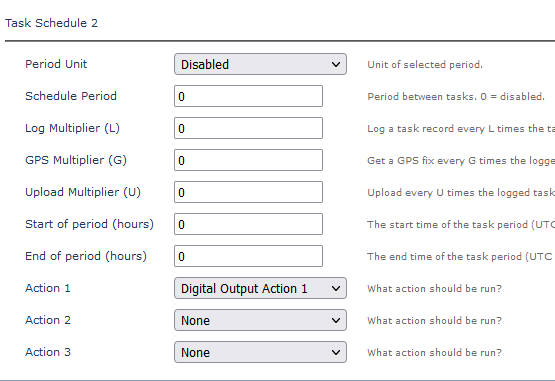
Run Task only in response to an event
We may use this kind of set up to cause the task to turn on an output in response to an event.
E.g. Hawk On-Board Control - Turn on Pump when tank level is too low
Task Detail
It may be useful to know how the Hawk processes tasks. When a task runs, the following occurs:
- Start Task
- GPS started if requested
- Action 1
- Action 2
- Action 3
- Action 4
- Action 5
- Wait for GPS to finish
- Pack readings + results up into a record and log
- Upload if necessary
