Sending Test Data

Written by Cameron Everett
Updated at August 25th, 2024
Battery Powered Devices
Applicable to:
| Barra GPS, Barra Core and Barra Edge |
| Oyster3, Oyster3 Bluetooth, Oyster3 Global and Oyster Edge |
| Yabby3 and Yabby Edge |
| Remora3 and Remora3 Global |
Often when provisioning devices, or when developing a Third-Party platform, it is useful to be able to get the device to upload more frequently, so that data can be received. We can adjust parameters to make this occur.
1. Shorten the Heartbeat
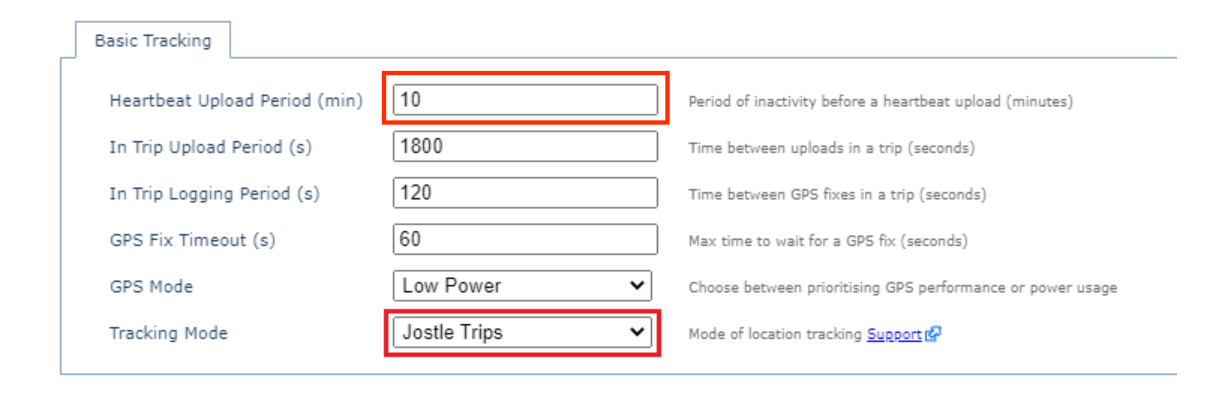
You can shorten the heartbeat to receive data more frequently when the device is stationary.
If the heartbeat is configured as below, it means the device will send data every 10 minutes.
2. Enable Jostle Mode
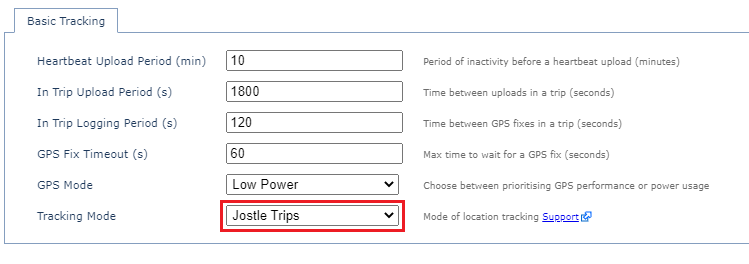
By default, our devices start and end trips based on GPS movement (expect for our Edge and Core devices; Jostle mode is the default). We can change them to Jostle Mode so that they rely on the accelerometer to start a trip. Then we can trigger a trip start and upload by shaking the device. See Jostle Mode Tracking for more information.
3. Remove and Insert Batteries
Removing the batteries, waiting around 20-30 seconds for all the capacitors to discharge, and then reinserting them will force the device to do a hard reset and force a GPS fix and upload. This will also reset the device counters.
4. Tamper Detect
Some devices are supplied with magnets for tamper detection. Removing/reinserting the magnets will result in an upload by default.
Hard-Wired Devices
Applicable to:
| Bolt2 4G | All Firmware |
| Dart3 4G Dart3 4G Bluetooth Dart3 Global Bluetooth |
All Firmware |
| G70 4G G70 4G Bluetooth |
All Firmware |
| G120 4G | All Firmware |
| G150 Global | All Firmware |
Often when provisioning devices, or when developing a Third-Party platform, it is helpful to be able to get the device to upload more frequently, so that data can be received. We can adjust parameters to make this occur.
1. Toggle External Power
By toggling external power, you can force the device to upload.
Simply remove external power, wait a few minutes, and then reconnect.
2. Jostle the device
By default, wired devices automatically upload and log when harsh events occur.
By vigorously shaking the device, and triggering a harsh event, you will force an upload.
3. Toggle the ignition on and off
Toggling the ignition On and Off will force an upload.
Note: if you leave the ignition on, new parameters and firmware aren't applied until the trip end.
