Device Firmware Not Updating

Written by Matthew Clark-Massera
Updated at June 25th, 2025
Table of Contents
The device firmware update process is as below:
- User sets the desired firmware in the UI (Device Operations → Set Firmware)
Then, when the device next connects in:
- Device sends Hello message to Device Manager
- Device uploads data
- End server responds with the commit response, to say data has been successfully received.
- Device does a 'slot check' and syncs up any pending firmware or parameter updates
In some circumstances we may see a firmware update not getting through after a connection.
Troubleshooting:
Check "Since Committed" Time
If the device is not committing:

We must resolve this, then the update will get through. The FW update is not preventing the commit, instead the failure to commit is preventing the firmware update. We are failing at step 4 above and not proceeding to 5.
Solution
See Since Committed/Since Connected and Troubleshooting and rectify the issue with the data not getting to the end server.
Device can commit OK - next steps
On occasion, the device will be connecting/committing OK but the FW still does not update.

This is due to the firmware no longer being active on Device Manager.
Sometimes, Digital Matter deactivates older versions for various reasons - such as they aren't able to be downgraded.
The firmware being 'stuck' does not cause problems with the device. The device simply finds the FW it is trying to pull down from Device Manager is inactive, and skips the update.
Solution
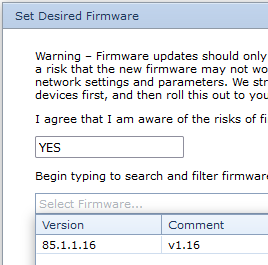
Update the device to the latest firmware. In this example, 1.14 not being on the list (and only 1.16) is our indicator that this was the issue (1.14 is inactive)
Device Has Not Reset/Records Not Uploaded
Another reason may be that the device has records/data that need to be uploaded. In this case, the device will not download and apply the new firmware until all records in its memory have been uploaded. If you do not need these records the process can be sped up by clearing the device connector on Device Manger- this will mean records get uploaded to Device Manager and discarded instead of Device Manager and to the specified endpoint which would be faster(the communication technology of the device will also affect how fast these uploads happen). The solution here would be to allow the device to completely upload all of its records- to allow these to be uploaded faster you can increase the connection time out time and decrease the heartbeat interval.
A device will also not update its parameters while in trip - in this case, you will have to wait for the device to go out of trip for the firmware to update, as the device will first need to reset.
