Moko BLE Tags
Set up and configure MOKOSmart BLE tags

Written by Sean Withers
Updated at October 3rd, 2024
Table of Contents
Setting Up Moko Tags with DM Devices
Setting up Moko tags with DM devices is a straightforward process. Here’s a quick guide to get you started:
Power On Your MOKO Tag
1. Download the App
Download the appropriate MOKOSmart mobile app for your tag. For example, the H3 Card and M2 can be found on the BeaconX Pro App, while the M4 Pro can be found on the MK Tag App. Contact MOKOSmart support for additional assistance in using their applications.
2. Connect to Your MOKO Tag
Power on your MOKO tag
- Tags are powered in various ways. Some tags have visible indicators like an external power button (H3 Card) or pull tab (M1 Coin). If you don't see a visible indicator for powering on your device, you might need to open the tag to access the internal power button (M2, L02S) or internal battery film separator (M4 Pro). Contact MOKOSmart support for additional assistance in powering on their devices.
Open the mobile app and search for nearby devices.
- If your tag does not show up, you might be using the incorrect MOKOSmart app or your tag might not be powered on.
- Select your MOKO tag from the list of available devices.
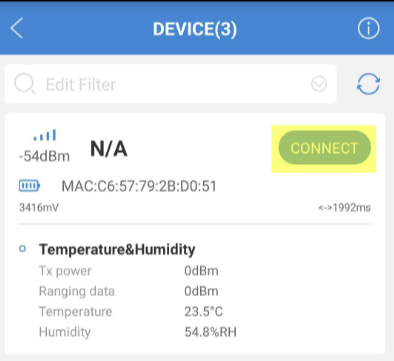
Configure Your MOKO Tag
1. Provision Your Moko Tag
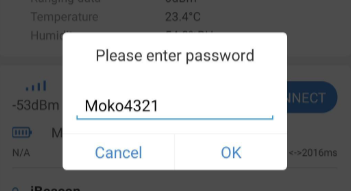
- When prompted, enter the default password: Moko4321.
- Follow the in-app instructions to provision your tag.
2. Configure Slot Specifications
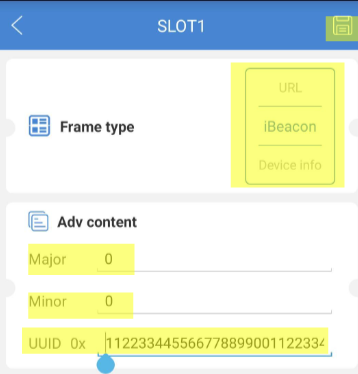
- iBeacon
- Eddystone and iBeacon specifications aid in simple integration and identification of your tags (identification only).
3. Check Frame Types
- Different tags have unique frame types.
- For example, the H4 tag includes T&H (Temperature and Humidity) frame types.
- Verify your tag’s specifications to ensure compatibility.
Connect to Your Digital Matter Device
Verify Tag Support for DM Devices
- Refer to the supported tags list to check if your Moko tag is compatible with your DM device.
- This ensures proper functionality and integration.
Setting Up DM Device to Scan Moko Tag
- Follow the detailed steps provided in the DM device’s documentation.
- This includes configuring the DM device to periodically scan for the Moko tag.
For detailed steps on configuring your DM device, refer to the link provided.
If your tag type is not currently supported or seen in the tag dropdown, please see how to integrate tags here.
By following these steps, you can efficiently set up and integrate Moko tags with your DM devices for enhanced tracking and monitoring capabilities.
