Contact Us

    If you still have questions or prefer to get help directly from an agent, please submit a request.
    We’ll get back to you as soon as possible.

    Please fill out the contact form below and we will reply as soon as possible.

    • Digital Matter Site
    • Contact Us

    Hawk - How to update Card and Baseboard Firmware

    Written by Cameron Everett

    Updated at August 29th, 2024

      Contact Us

      If you still have questions or prefer to get help directly from an agent, please submit a request.
      We’ll get back to you as soon as possible.

      Contact Support
      • Home
      • Devices
      • Hawk IoT Datalogger
      • Getting Started

      It is very important that you update your card and baseboard FW to the latest available.

      Baseboard FW - Device Manager

      Update Baseboard FW

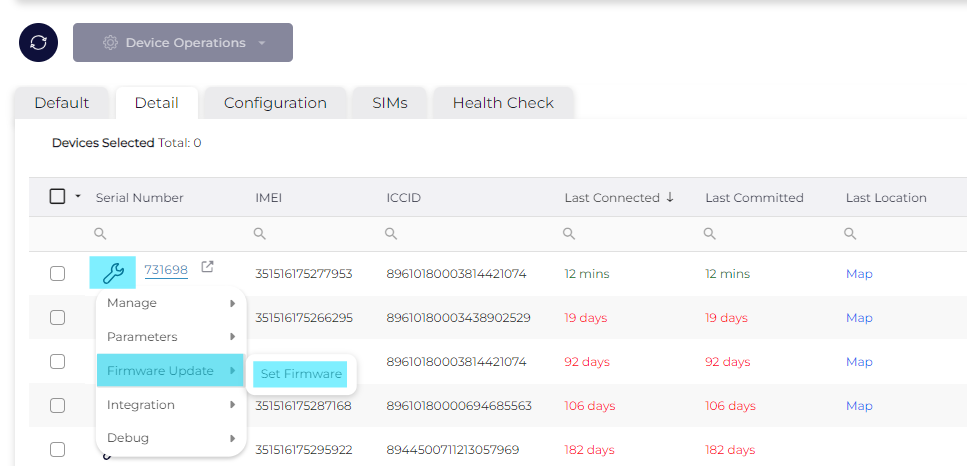
      1. Select the spanner, Firmware Updates and Set FW.
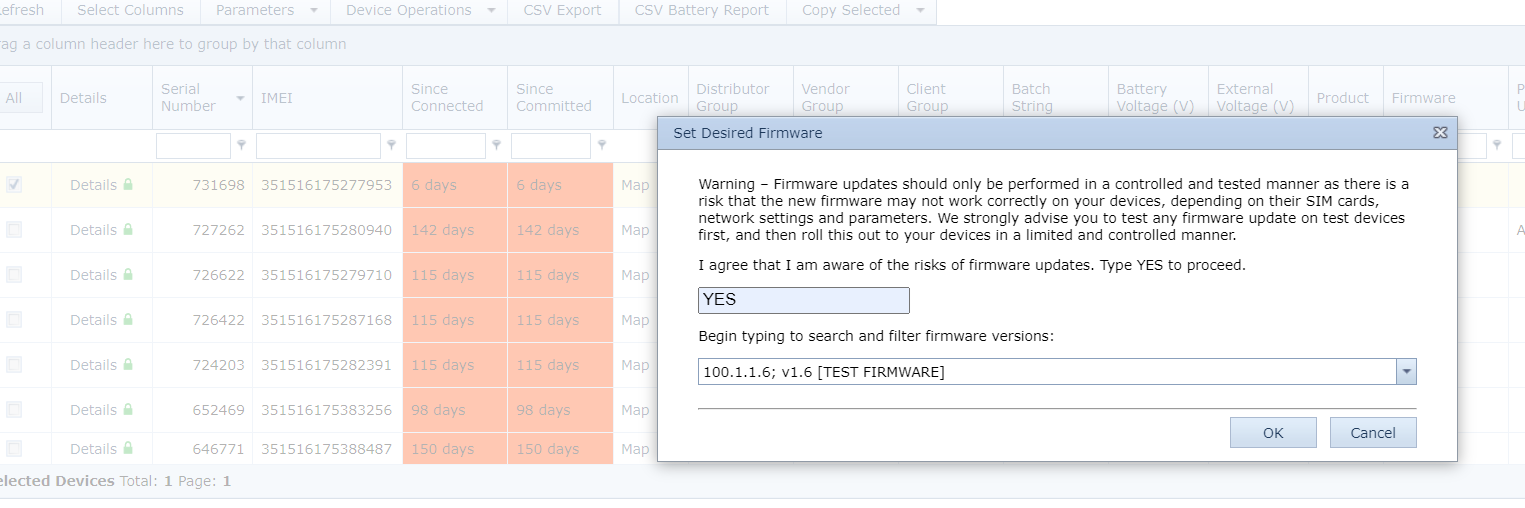
      1.  Type YES to proceed and select the desired FW.
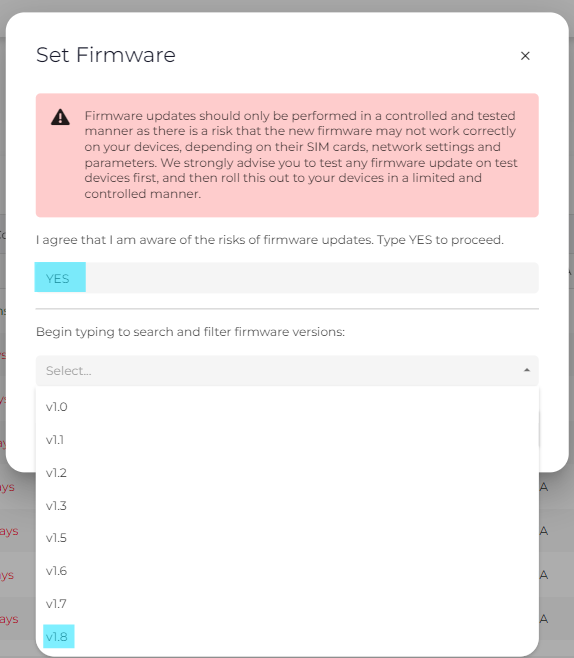
      1. Select “Ok”.


      Card FW - Device Manager

      Update Card FW

      Note: You can view and filter which devices have which card FW on the device grid.
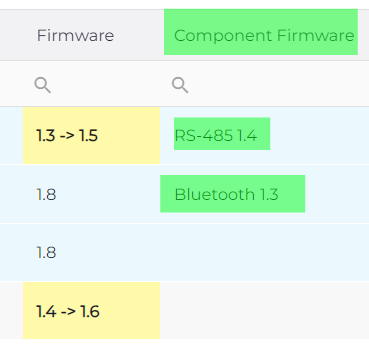
      Option 1

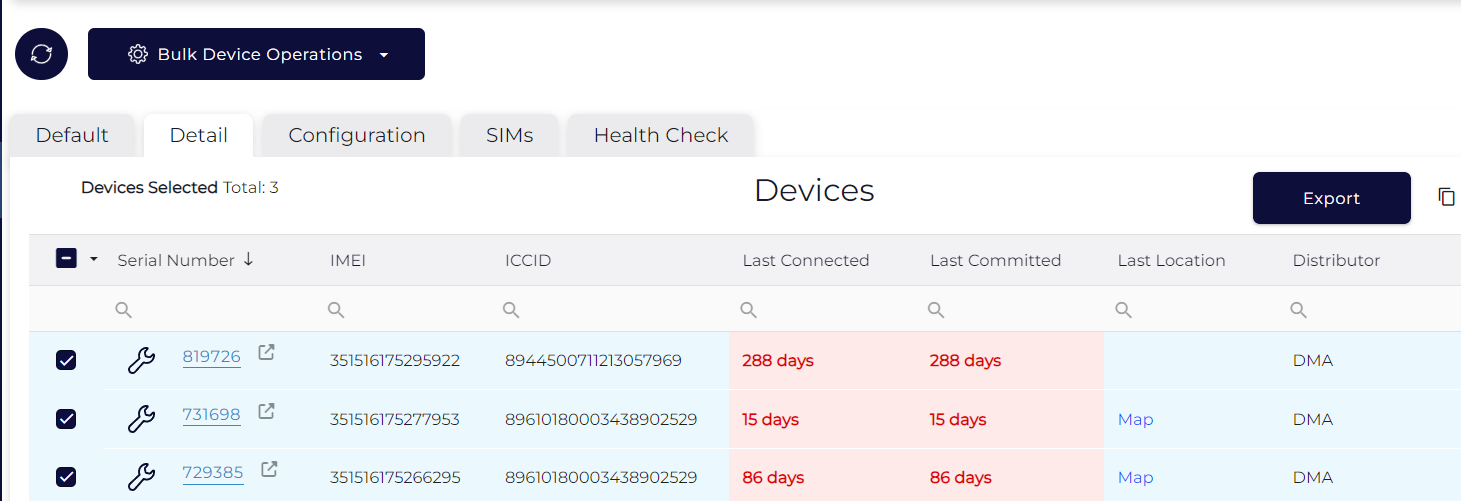
      1. Select all devices you would like to upgrade in the grid. 
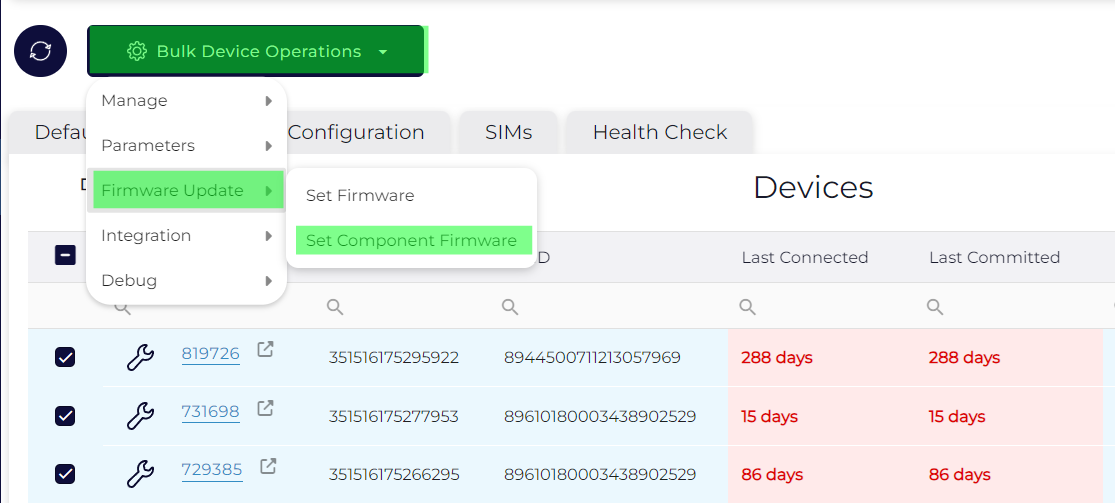
      1. Click the bulk device operations button, and select “Firmware Update” → "Set Component FW"
      1. Update to whichever FW variation you like.
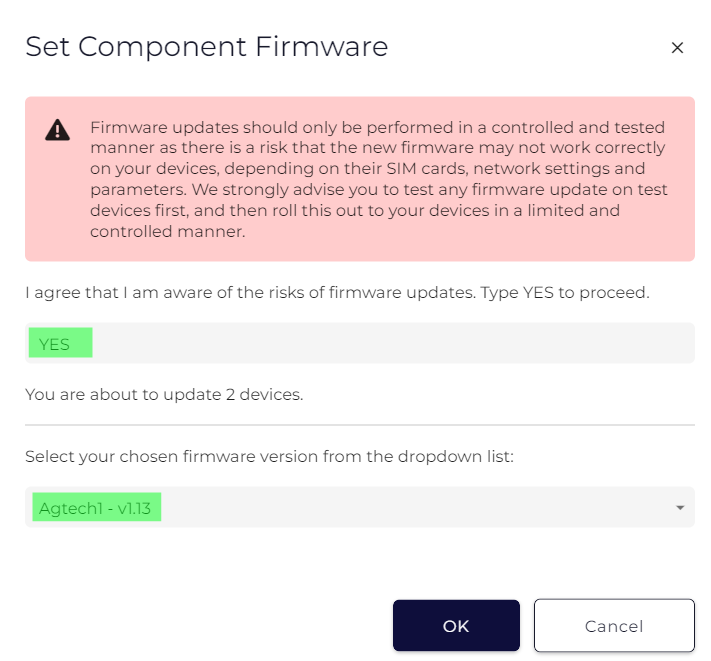
      1. Click ok.

      Option 2

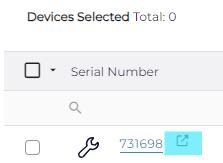
      1. Select the popout button

      1. Scroll down and select “Change FW”
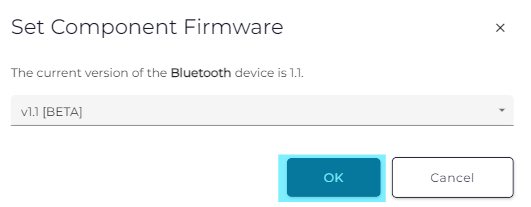
      1.  Select the desired card FW and click “Ok”.
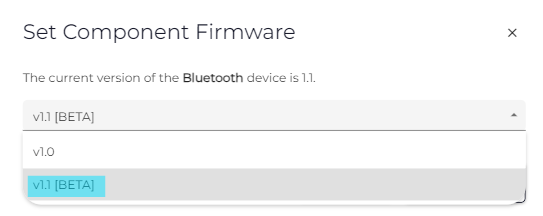
      The FW will update the next time the device connects to Device Manager.


      OEM

      Update Baseboard FW

      1. Select the desired device from the device grid.
      2. Select “Device Operations” and “Set Firmware”.

      3. Select the desired firmware and confirm by typing “YES”.
      4. Click “Ok”.

      The firmware will update the next time the device connects to OEM.

      Update Card FW

      1. Click “Details” on the desired device.
      1.  Click “Change Firmware” and select the desired card FW.
      2. Click “Ok” to confirm.

      The firmware will update the next time the device connects to OEM.


      update firmware card baseboard

      Was this article helpful?

      Yes
      No
      Give feedback about this article

      Related Articles

      • Hawk Dimensions
      • Hawk FAQ
      • Hawk and Card - Firmware Release Notes
      • Hawk Upload Settings

      Subscribe to Partner News

      Subscribe to our mailing list to receive Digital Matter news, product and tehnical updates, and more.

      Subscribe

      Copyright © Digital Matter . All Rights Reserved.

      Privacy Contact Support

      Knowledge Base Software powered by Helpjuice

      DM Logo
      Expand